01
Upload two clean source photos
Use portraits, products, pets, scenes, or concept references. The tool accepts JPEG, PNG, and WEBP files, so you can merge two images online without preparing a complex design file first.
Upload two images, combine photos online with an AI prompt, and download one realistic composite without creating an account.
Use portraits, products, pets, scenes, or concept references. The tool accepts JPEG, PNG, and WEBP files, so you can merge two images online without preparing a complex design file first.
Describe whether the final image should feel realistic, cinematic, playful, product-focused, or editorial. The prompt gives the AI photo merger context beyond a simple side-by-side collage.
After generation, the merged photo is stored and returned as a direct image URL, ready for download, creative review, social drafts, mockups, or product experiments.
A collage maker places images next to each other. Merge Photos Online is built for people who want the subjects, lighting, and background to become one new scene. Upload a person and a location, a product and a lifestyle reference, or two creative concepts, then guide the AI photo merger with a short prompt.
The tool is useful for fast visual exploration before you open a heavier editor. Creators can test thumbnail ideas, sellers can explore product scenes, designers can combine references for moodboards, and social teams can draft composite images without asking for a login. The main workflow stays focused on one job: combine two photos online and return one downloadable result.
Use it when a simple before-and-after layout does not explain the idea. A travel creator can merge a portrait with a destination street, a shop owner can merge a product photo with a lifestyle setting, and a designer can merge two references before committing time to a full Photoshop file. The strongest results usually come from two clear inputs: one image that defines the main subject and another image that defines the place, mood, lighting, or visual style.
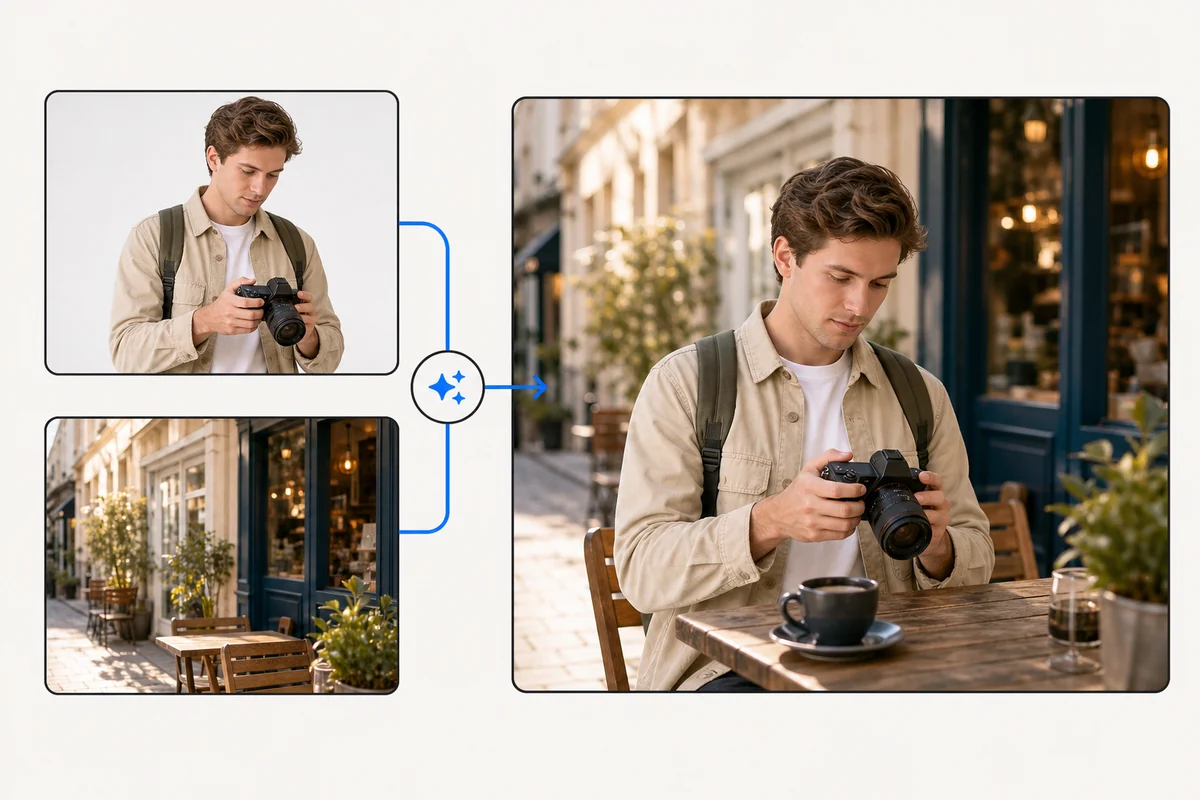
The default prompt asks the model to preserve key subjects, natural lighting, seamless edges, and a detailed background. You can replace it with a product shot prompt, a couple photo prompt, a travel scene prompt, or a branded creative direction.
A good prompt explains the relationship between the two uploads. Instead of writing only "merge these photos", describe which subject should stay recognizable, which background should guide the final scene, and what kind of finish you want. Phrases like "realistic editorial composite", "natural window light", "product on a cafe table", or "keep the person in the foreground" help the AI photo merger understand the intended output.
Each source image can be up to 8 MB. This keeps the online photo merge fast enough for browser use while still supporting common camera exports, screenshots, product images, and design references.
For cleaner merges, start with images that are sharp, uncropped around the important subject, and not heavily filtered. Matching camera angle and lighting direction is helpful, but it is not required. If one image is a product shot and the other is a room, scene, street, or studio reference, make sure the product edges are visible and the scene has enough empty space for the composite.
You can start by uploading two images and completing the Cloudflare check. The verification step protects a free generation endpoint from automated abuse before any image processing work begins.
The no-login flow is meant for fast experiments. You can test an idea, download the result, and decide whether it is worth refining in a heavier editor. Because the tool is browser based, it is useful for quick creative direction, early mockups, pitch drafts, and social content planning where speed matters more than managing a complex design workspace.
The best way to merge photos online is to decide what each upload contributes before generation. Treat Source A as the anchor image when it contains the person, product, pet, outfit, object, or main subject that must stay recognizable. Treat Source B as the context image when it contains the background, room, landscape, lighting reference, color palette, or atmosphere you want the final image to borrow.
If both photos contain important subjects, write that clearly in the prompt. For example, ask the model to place both people in the same scene, combine two outfit references into one editorial image, or keep a product visible while changing the background. If only one image contains the subject, ask the AI to preserve that subject and use the second image mainly for environment, perspective, and mood.
Avoid asking for too many unrelated changes in one generation. A focused instruction such as "merge this product into the cafe scene with natural morning light" is usually more useful than a long list of competing effects. You can always generate a first composite, review the direction, and then try a more specific prompt for the next version.
For a product image, try: "Place the product from Source A into the lifestyle scene from Source B, keep the product shape accurate, match the table shadows, and make the result look like a realistic ecommerce campaign photo." For a portrait, try: "Keep the person from Source A recognizable and merge them into the street scene from Source B with natural daylight, realistic scale, and soft background depth."
For thumbnails or social posts, try: "Combine the subject from the first image with the dramatic lighting and background mood of the second image, create a clean high-contrast composition, and leave space for text on the left." For moodboards, try: "Blend the colors, textures, and setting from both photos into one cohesive concept image without making it look like a collage."
These examples are starting points. The useful pattern is consistent: name the subject, name the scene, describe the lighting, and describe the finish. That gives the online photo merger enough direction to create one coherent image instead of simply mixing two unrelated pictures.
People search for merge photos online when they need one finished image quickly, not a template, frame, or collage grid. A browser-based merge photos online workflow is useful because it removes the setup work: there is no layer stack to build, no masking tool to learn, and no account wall before the first online attempt. Upload two photos, describe the online merge, and review a single generated result.
The phrase merge photos online also covers several different jobs. Some users want to merge photos online for a product mockup, some want to merge photos online for a portrait in a new location, and others want to merge photos online for social posts, thumbnails, profile images, moodboards, or campaign drafts. The shared intent is speed: combine photos online, see whether the idea works, and download a composite that can be used as a draft or reference.
This page keeps that online workflow direct. The upload form accepts two photos, the prompt explains how the photos should be merged, and the output is designed to be one realistic online image. If you need to merge photos online without opening a full editing suite, start with two clear photos and use the prompt to name the subject, setting, lighting, and final style.
A collage maker is still useful when you want separate photos inside boxes. Merge Photos Online is different: it is written and designed for users who want photos to become one new scene. That distinction matters for SEO and for the product experience. The user does not simply want more photos on a canvas; the user wants to merge photos online so the final image looks connected.
For that reason, the content repeats the real task in plain language: merge photos online, combine two photos online, merge two photos into one image, and create an AI photo merge from two sources. These phrases describe the same core action without hiding the page behind vague wording. The copy is meant to help search engines and visitors understand the page within a few seconds.
If the first result is close but not perfect, refine the input and merge photos online again with a tighter prompt. Keep the subject photo clean, choose a background photo with enough usable space, and explain what should remain unchanged. A simple, repeated merge photos online process is often faster than trying to perfect the idea before seeing a visual draft.
The page is written for one search intent: people looking for a fast online photo merger that can combine two images into a new AI-generated result.
These answers explain what the tool does, how it differs from a collage maker, and how to prepare better inputs before you merge photos online.
No. A collage maker arranges photos in a grid, frame, or side-by-side layout. This version uses AI image generation to blend two uploaded photos into a new composite scene. The goal is one final image where the subject, background, lighting, and perspective feel connected.
JPEG, PNG, and WEBP images are accepted. Each source file can be up to 8 MB. For better results, upload clear images with visible subjects, enough background detail, and minimal motion blur.
Yes. Upload the product image as one source and the scene or style reference as the other source, then describe how the final composite should look in the prompt. This is useful for testing ecommerce campaign ideas, social ads, hero images, marketplace thumbnails, and quick product-in-context concepts before arranging a real shoot.
The app is free and does not require login, so Turnstile helps block automated abuse before generation.
A good prompt says what to preserve, what to borrow, and what the final image should feel like. Mention the main subject, the desired background, the lighting style, the camera angle, and whether the final result should be realistic, editorial, cinematic, playful, or product-focused.
Use it when you need a fast visual draft and do not want to build a full layered design file yet. It works well for creator thumbnails, product scene tests, pitch visuals, moodboards, travel concepts, profile images, social campaigns, and early creative direction.